
Introduction
Welcome to Part 2 of our sharing on Canva Magic Studio! In this section, we’ll cover a few more interesting Canva AI tools that is surely going to help you a lot! (well you can check on the table content below).
Imagine effortlessly crafting professional-quality designs, engaging animations, and dynamic videos—all with just a few clicks. Say goodbye to the hassle of content creation and hello to faster design process!
Let’s begin 🔽🔽
Table of Contents
1. Magic Design
Magic Design allows you to generate design templates, layouts, and styles tailored to your needs in no time. Simply upload an image or video, and Magic Design will instantly transform it into custom templates that match the style of your uploaded content. It’s perfect for those moments when you’re stuck or just need a little inspiration.
Why You Need It
- Saves Time: No more staring at a blank canvas for hours.
- Professional Quality: Get designs that look like they were made by a pro.
- Endless Inspiration: Always have fresh ideas at your fingertips.
Example of Use
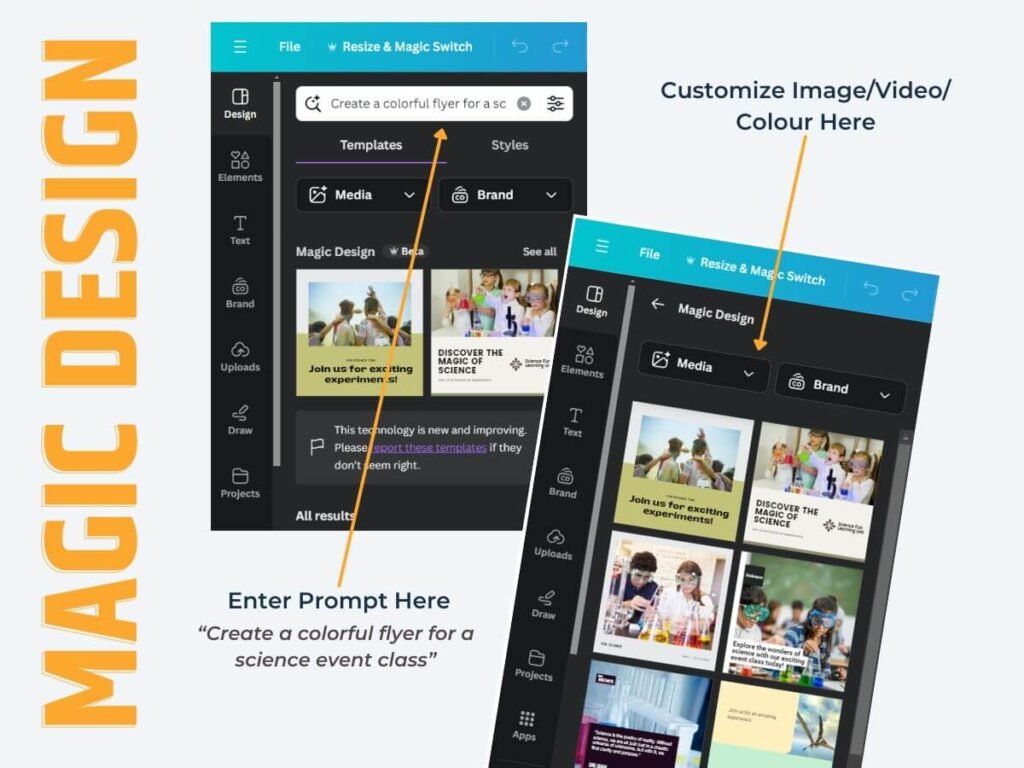
As a teacher, you can leverage Canva Magic Design to quickly generate lesson materials , classroom resources or event class announcement . For instance, you want to quickly create a design related to science event class, you can type a prompt as example below.
Canva AI would instantly generate a sample of template options. Then you can customize with your own content such as image, video and brand color. Sometime we really lack an ideas. This going to help us a lot!
Step-by-Step Guide
| Step | Action |
|---|---|
| 1. Access Canva | Open Canva and log into your account. If you don’t have an account, you can create one for free. |
| 2. Start a New Project | Click on “Create a design” and choose the type of design you want to create, such as a social media post, flyer, or presentation. |
| 3. Open Magic Design | In the design editor, look for the “Design” option on the left sidebar. Click on it to access the feature. |
| 4. Input Your Prompt | Type a descriptive prompt related to your design needs. For example, “Create a colorful flyer for a science event class.” |
| 5. Generate Templates | Canva’s AI will analyze your prompt and instantly generate a selection of customizable design templates based on your input. |
| 6. Browse Options | Review the generated templates and select one that best fits your vision and requirements. |
| 7. Customize Your Design | Once you’ve chosen a template, you can customize it by adding your own content, such as images, videos, and text. Adjust colors and fonts to align with your brand identity. |
| 8. Save and Share | After finalizing your design, click on the “Download” button to save your creation. You can also share it directly on social media or with your audience through Canva. |
2. Magic Presentation
With Magic Presentation you can effortlessly create engaging and dynamic presentations with just a few clicks. Just like Magic Design, you have to put a brief command on what presentation topic.
Once Canva AI generated the presentation, then you can customize again animations, transitions, and other visual effects that enhance the overall presentation.
Why You Need It
- Engaging Content: Create presentations that keep your audience interested and focused.
- Professional Quality: Achieve a polished, professional look with minimal effort.
- Saves Time: Quickly put together presentations without sacrificing quality.
Example of Use
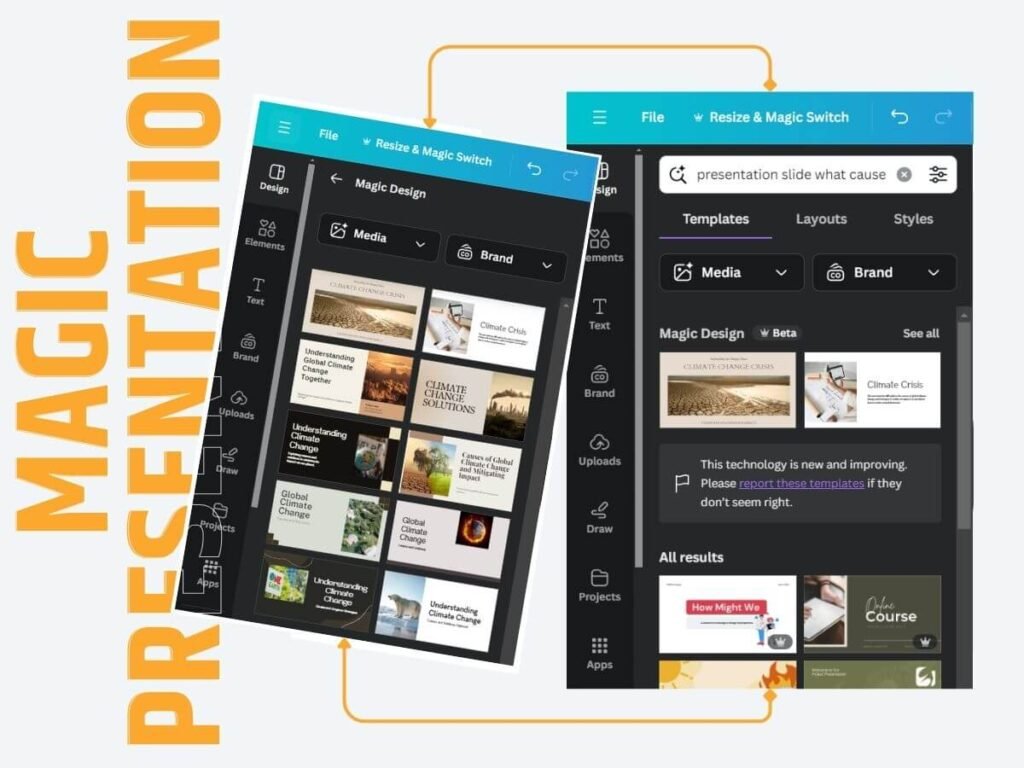
Imagine a teacher preparing a lesson on climate change topic. You can put example of command script “Presentation slide on what cause the global climate change and how to minimize the impact”.
You also can add your own image, video and brand color which suit your need.
Step-by-Step Guide
| Step | Action |
|---|---|
| 1. Open a Presentation | Launch Canva and create a new presentation or open an existing one. |
| 2. Click on Magic Presentations | Look for the Magic Presentations button on the left sidebar. If you don’t see it, you can also access it through the Canva Assistant in the bottom right corner. |
| 3. Enter a Prompt | Type a brief description of the presentation you want to create, such as “Presentation slide on what cause the global climate change and how to minimize the impact”. |
| 4. Generate Presentation Ideas | Hit enter, and Canva AI will generate a selection of presentation templates based on your prompt. The templates will feature relevant imagery, layouts, and color schemes to match the content you specified. |
| 5. Preview and Select | Preview each template option to find the one that best fits your needs. Once you’ve made your selection, click “Apply all pages”. |
| 6. Customize and Edit | You can customize the presentation, such as adding your own images, videos, or brand colors. Rearrange slides, edit text, and fine-tune the design to make it your own. |
3. Magic Video
Magic Video can help you create stunning videos with just a few clicks. What you need to have is an images then type in command script about the video you are planning to create.
Why You Need It
- Save time: Canva Magic Video can help you create videos quickly and efficiently, freeing up your time to focus on other tasks.
- Enhance your brand: With its customizable templates and layouts, Magic Video can help you create videos that are consistent with your brand’s aesthetic.
- Attention-Grabbing Content: Videos are known to be more engaging and effective than static images, making Magic Video a valuable tool for capturing your audience’s attention across various platforms.
Example of Use
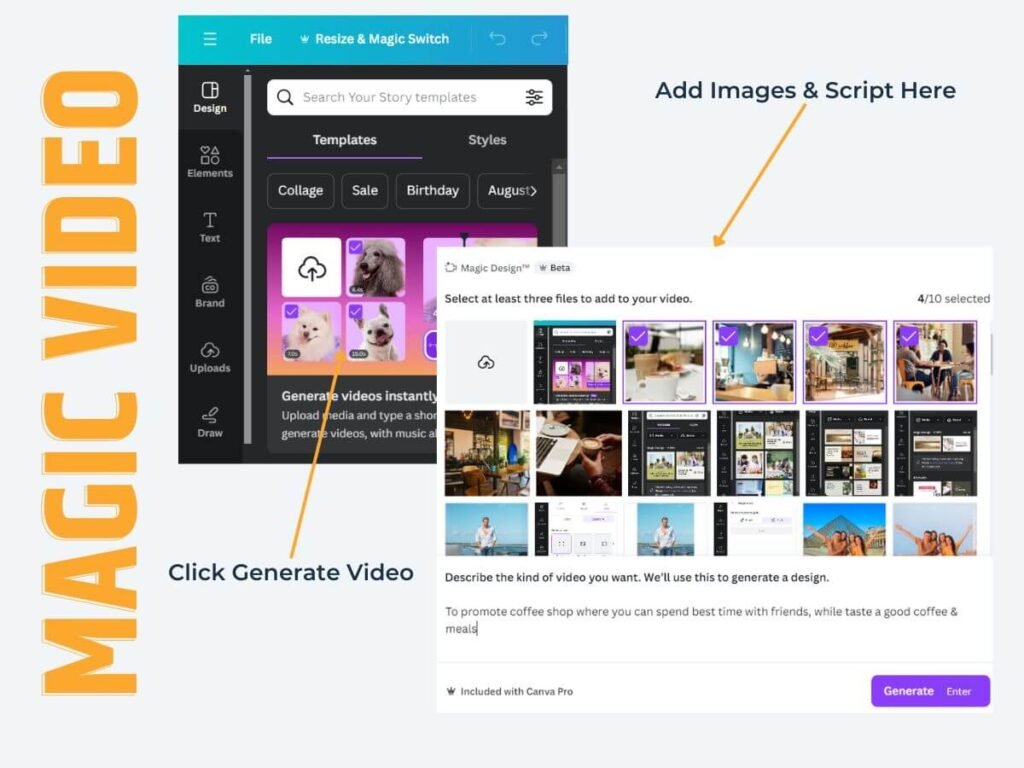
Let’s say you need to create a video to promote your new coffee shop. With Magic Video, you can simply add you shop’s image, menus and attractive photos, and Canva AI will generate a professional-looking video complete with dynamic visuals, engaging text, and a call-to-action.
For example you could enter a command script “To promote coffee shop where you can spend best time with friends, while taste a good coffee & meals”. As of now, Canva allow 100 character for command script.
Step-by-Step Guide
Here’s a step-by-step guide to using Canva Magic Video:
| Step | Action |
|---|---|
| 1. Open Canva | Launch Canva and log into your account. If you don’t have an account, you can create one for free. |
| 2. Start a New Video Project | Click on “Create a design” and select “Video” from the options. |
| 3. Access Magic Video | Look for the “Magic Video” option on the left sidebar and click on it. |
| 4. Input Your Prompt | Add your preferred images. Type a descriptive prompt related to the video you want to create, such as “To promote a coffee shop where you can spend the best time with friends while tasting good coffee and meals.” |
| 5. Generate Video Ideas | Canva’s AI will analyze your prompt and instantly generate a selection of customizable video templates based on your input. |
| 6. Customize Your Video | You can customize it by adding your own content, such as images, videos, and text. Adjust colors, fonts, and animations to align with your brand identity. |
| 7. Customize Music and Effects | By default, audio and effects has been generated. However you can customize again background music and sound effects using Canva’s built-in audio tools as per you like. |
| 8. Save and Share | After finalizing your video, click on the “Share” button to save it to your device or share it directly on social media or with your audience. |
4. Magic Write
Magic Write is an AI-powered text generation tool that can help you create engaging and compelling copy for your designs. Whether it’s for social media posts, ads, blogs, or any other content, Magic Write can assist you in crafting the perfect text.
Why You Need It
- Saves Time: Quickly generate text ideas without spending hours brainstorming.
- Inspiration Booster: If you’re ever stuck for words, Magic Write can provide a helpful starting point. Get inspired with unique text suggestions that you might not have thought of on your own.
- Versatile Use: Perfect for creating social media posts, blog content, presentations, and more.
- User-Friendly: Easy to use, even for those who may not consider themselves strong writers.
Example of Use
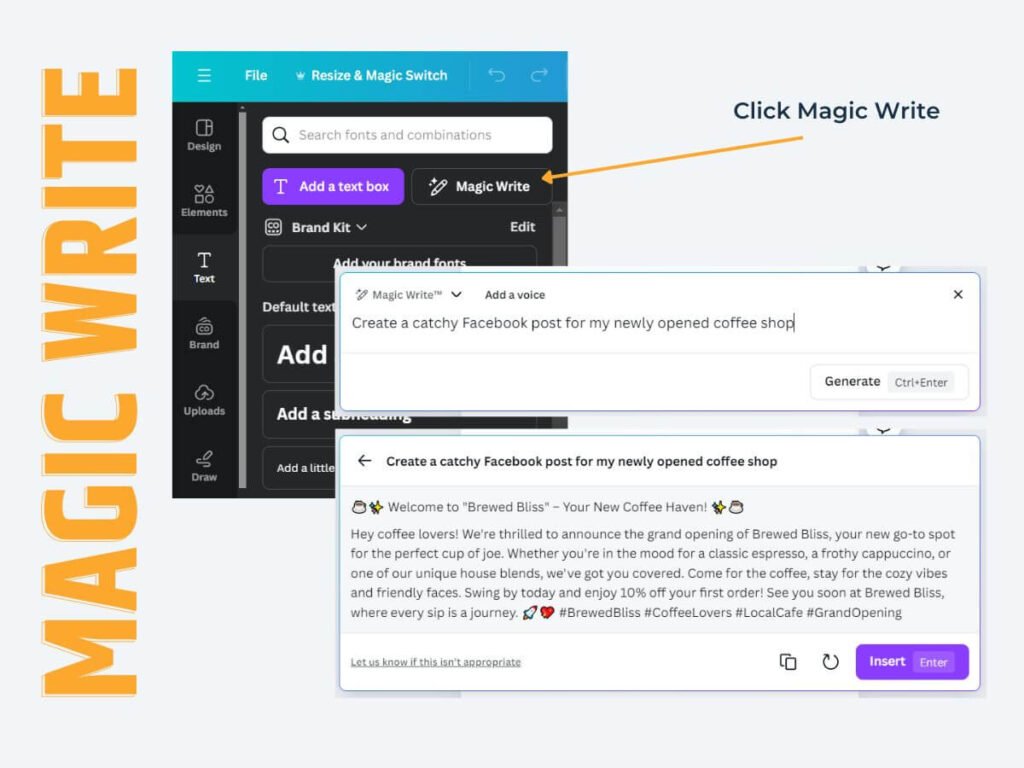
Imagine you’re a business owner looking to promote a new shop. With Canva Magic Write, you can generate a copywriting in order to post into your social media (Facebook, Instagram, etc).
The AI will generate the copywriting. You can regenerate if you are not satisfy with the provided copywriting. You can also customize and refine the text to fit your brand’s voice.
Step-by-Step Guide
| Step | Action |
|---|---|
| 1. Open Canva | Launch Canva and log into your account. If you don’t have an account, you can create one for free. |
| 2. Start a New Project | Click on “Create a design” and select the type of project you want to work on, such as a social media post or presentation. |
| 3. Access Magic Write | In the design editor, click on any text box to activate the text editing options. Look for the “Magic Write” option and click on it. |
| 4. Input Your Prompt | Type a descriptive prompt related to the text you want to generate, such as “Write a catchy caption for my new coffee shop opening.” |
| 5. Generate Text Ideas | Canva’s AI will analyze your prompt and generate a text based on your input. |
| 6. Modify or Regenerate | You can modify or regenerate the copywriting accordingly. |
5. Magic Media: Text to Image
Canva Magic Media: Text to Image is an AI-driven tool that generates images based on the text descriptions you provide. Simply enter a prompt, and the AI will create a unique image that visually represents your idea.
This feature is perfect for creating custom graphics for social media, marketing materials, presentations, and more.
Why You Need It
- Instant Visuals: Quickly generate images that match your text prompts without needing graphic design skills.
- Enhance Engagement: Eye-catching visuals can significantly increase engagement on social media and other platforms.
- Boost Creativity: Get inspired by the AI-generated images, which can spark new ideas for your projects.
- Saves Time: Eliminate the time spent searching for stock images or designing from scratch.
Example of Use
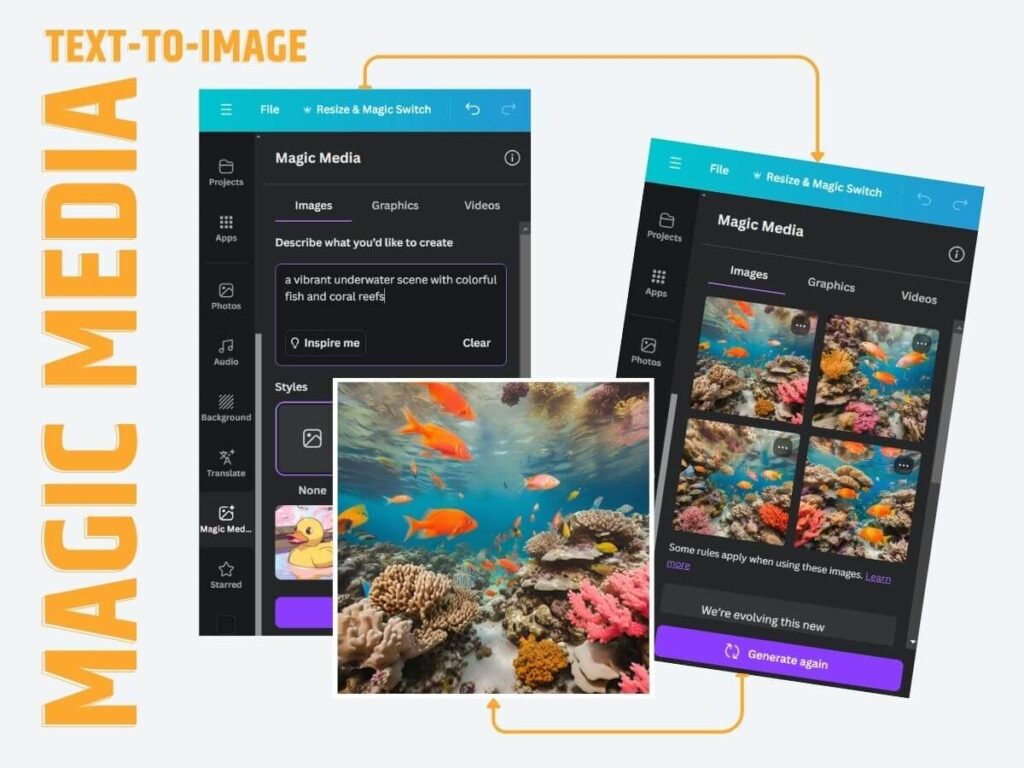
Imagine you’re an educator preparing a lesson on marine life. With Canva Magic Media: Text to Image, you can type a prompt like “a vibrant underwater scene with colorful fish and coral reefs.”
The AI will generate a beautiful image that you can use in your presentation or educational materials. This feature allows you to create unique visuals tailored to your specific needs in just moments.
Step-by-Step Guide
| Step | Action |
|---|---|
| 1. Open Canva | Launch Canva and log into your account. If you don’t have an account, you can create one for free. |
| 2. Start a New Project | Click on “Create a design” and choose the type of project you want to work on, such as a social media post or presentation. |
| 3. Access Magic Media | In the design editor, look for the “Magic Media” option on the left sidebar and click on it. |
| 4. Input Your Prompt | Type a descriptive prompt related to the image you want to generate, such as “a vibrant underwater scene with colorful fish and coral reefs.” |
| 5. Generate Image | Canva AI will analyze your prompt and generate a selection of images based on your input. |
| 6. Browse and Select | Review the generated images and select one that best fits your needs. |
| 7. Customize Your Image | Once you’ve chosen an image, you can customize it by adding text, changing colors, or incorporating other design elements to match your project. |
We hope you can get something from this sharing. Let us fully utilize this tools so we can saves time as well as boost our productivity!
If you miss out on Master Canva AI : Magic Studio (Part 1), please refer to link below 🔽🔽
In Part 1, we’ll dive into..
- Magic Edit
- Magic Eraser
- Magic Grab
- Magic Expand
- Magic Resize
- Magic Animate
Did you find this post helpful? Share it with your friends and help them boost their productivity too!